
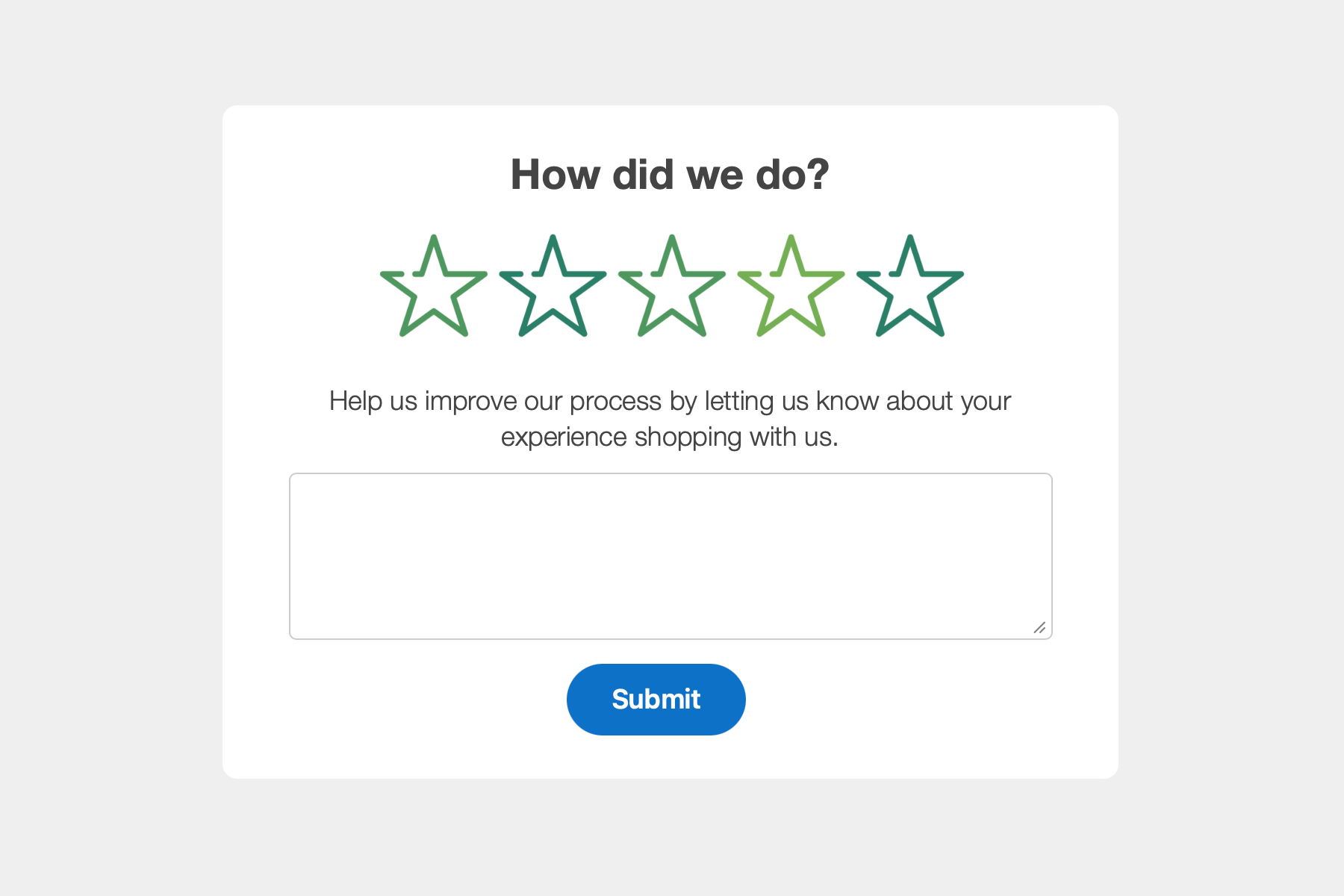
Asking for a rating in an email allows for a quick way for users to provide feedback on their experience. Just ask a simple question like: “How did we do?” and show 5 stars that they can click on. Clicking on a star rating will send them to a landing page.
The landing page would include their answer along with additional optional fields they can fill out, like a free form text field for them to elaborate on their choice. They then submit the form that gets sent to your form processor/CRM.
Rating in email
To setup the email rating, just use an image of a star, repeated 5 times. And link each star to your form’s landing page. In the link URL, add a variable with a value of the star selected. For example, the 4th star would have:
https://blocksedit.com/feedback/?rating=4
By using links for the user interaction instead of submitting it as a form, you avoid the limitations that come with using forms in email. You can refer to our email starter template for an idea for the design along with star icons you can use.
Landing page form
On your landing page, you’ll need to make sure the variables in the URL are included when your form is submitted. Either as hidden fields, or by showing stars selected within your form. To pass variables as hidden fields, you can refer to our multi-step form technique.
Add a textarea field, along with any other relevant options, to get additional feedback. If you’re looking for a template of form fields to build your form, you can use our forms starter template.
Use the Blocks Edit visual editor to build and edit both custom designed emails, and landing pages with forms.